
How to Set Up Claude Cowork From Scratch (2026 Guide)
Claude Cowork out of the box is mediocre. Cowork properly configured is a completely different tool. The gap between those two is about 30 minutes of one-time setup — a folder structure, three context files, a block of global instructions, and a feature called AskUserQuestion that stops Claude from guessing and starts it asking.
Most people skip this process. They open Cowork, point it at a random folder, type a request, and get back output that sounds like it was written by a stranger.
Then they assume the tool is overhyped. This walkthrough helps you set up claude cowork — what it is, how to set it up properly, what to actually use it for, and where it falls short. Everything in one place.
What Cowork Actually Is (And Who It’s For)
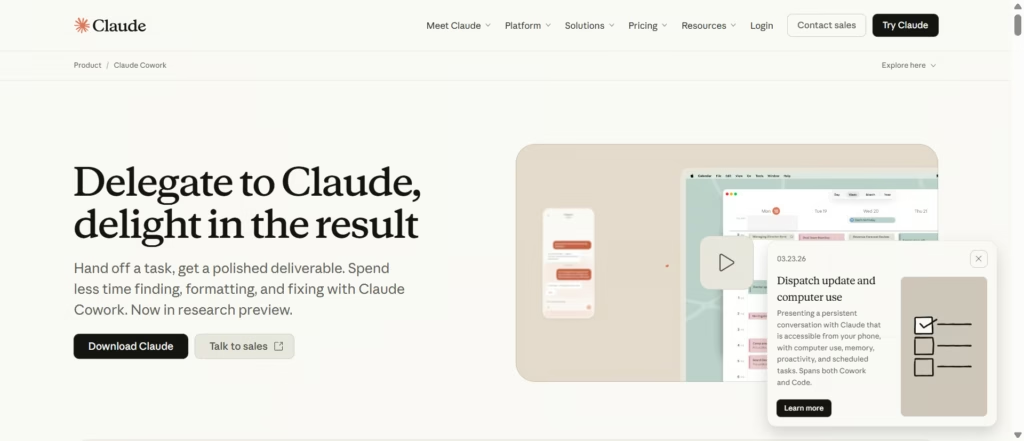
Cowork is a desktop agent built into the Claude Desktop app. It’s not a chatbot with a different tab — it’s Claude with direct access to your computer’s files. You point it at a folder, describe what you want done, and walk away.
Claude reads your documents, creates new ones, builds spreadsheets with working formulas, generates slide decks, organizes files, and saves everything directly to your disk. No copy-pasting from a browser window.
Anthropic built it on the same architecture as Claude Code, their developer tool. Cowork is the non-technical version. Same engine, wrapped in an interface that doesn’t need a terminal.
It’s designed for knowledge workers — researchers, analysts, consultants, marketers, operations teams, legal professionals, finance people — anyone whose job involves documents, data, and files. If your workday includes tasks that eat time but don’t require deep thinking, Cowork can probably handle them.
| Feature | Claude Chat | Claude Cowork | Claude Code |
|---|---|---|---|
| Interface | Browser / app | Desktop app | Terminal |
| Output | Text in conversation | Files saved to your computer | Code + files |
| File access | Manual upload | Reads/writes local files | Full repo access |
| Memory | Chat memory + Projects | Context files + Cowork Projects | CLAUDE.md + memory |
| Scheduled tasks | No | Yes | Yes (cloud) |
| Target user | Everyone | Knowledge workers | Developers |
| Parallel execution | No | Yes (sub-agents) | Yes (sub-agents) |
Step 1: Build Your Folder Structure
Before you open Cowork, create this folder on your computer:
Cowork-HQ/
├── context/
│   ├── about-me.md
│   └── voice-and-style.md
├── rules/
│   └── working-rules.md
├── projects/
│   └── (one subfolder per active project)
└── outputs/
    └── (Claude delivers all finished work here)
context/ holds the stable stuff — who you are, how you sound. Update it quarterly. rules/ holds Claude’s operating manual. projects/ holds briefs and reference material. outputs/ is where Claude writes everything.
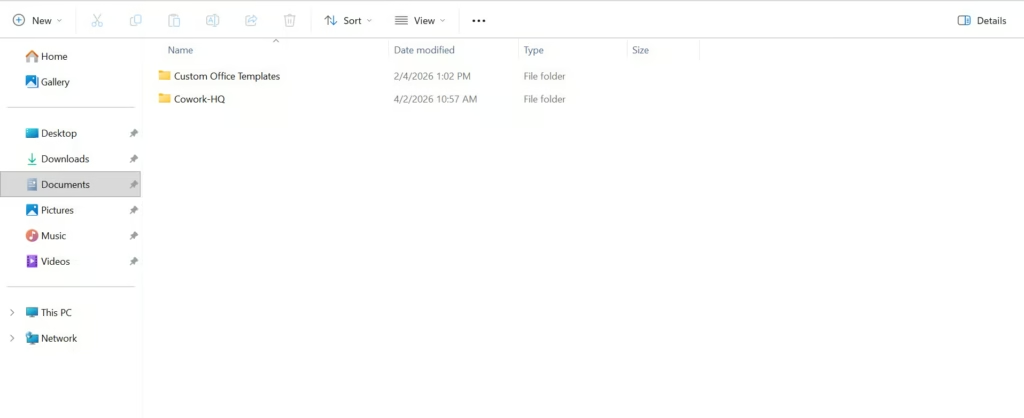
The separation matters. In your global instructions (Step 3), you’ll mark context/, rules/, and projects/ as read-only. Claude can never edit or delete files there. outputs/ is the only write destination. This prevents Claude from overwriting your context files or scattering deliverables in random spots.
One mistake to avoid: do NOT point Cowork at your entire Documents folder, your Desktop, or your home directory. Claude gets read/write access to whatever folder you select. Keep the perimeter tight — one dedicated folder with clear structure inside it.
Step 2: Create Your Three Context Files Using Claude
Cowork has no memory between sessions. Every task starts completely fresh. It doesn’t know your name, your role, your tone, or what “good work” means to you. Context files fix that. They live in your folder, and Cowork reads them automatically before starting any task.
There are three files, and you should not write them yourself. When people write their own context files, they produce LinkedIn bios — polished, generic, and disconnected from how they actually operate. Let Claude interview you instead.
Open a regular Claude chat session (not Cowork — just the normal web or app chat). Use these prompts one at a time in separate conversations.
File 1: about-me.md — Who You Are
You're going to interview me to build a detailed context file called about-me.md
that I'll use with Claude Cowork. This file needs to capture how I actually work,
not a polished bio.

Ask me questions ONE AT A TIME. Cover these areas:
- My role, company, and industry
- Who I serve (clients, customers, audience, internal teams)
- My current top 3 priorities
- What projects I'm actively working on
- What tools I use daily
- What "done well" looks like for my work specifically
- What frustrates me about AI-generated output
- How I make decisions (data-first, intuition, collaborative, etc.)

Ask 15-20 questions total. If my answer is vague or could describe anyone in my
field, push back and ask for a concrete example. Don't accept generic answers.

When finished, compile everything into a clean markdown file with clear section
headers. Include the specific examples alongside the rules — they're what make
the file actually useful.
Answer every question. Be specific. Save the output as about-me.md in your context/ folder.
File 2: voice-and-style.md — How You Sound
Interview me to build a voice and style file called voice-and-style.md for Claude
Cowork. This file should make every piece of writing Claude produces sound like
ME, not like AI.

Ask me ONE question at a time. Cover:
- My natural tone (formal, casual, somewhere between)
- Words and phrases I actually use regularly
- Words and phrases that make me cringe in AI output
- How I structure my thinking (short sentences? long explanations? bullet points?)
- Formatting preferences (headers, bold, lists — or clean prose?)
- An example of something I've written that I think sounds like me
- An example of AI writing that made me want to close the tab
- How I handle humor, directness, and technical language

Ask 15-20 questions. If I give you an adjective like "professional" or
"conversational," push back. Ask what that looks like in a specific sentence.

When done, compile into a markdown file. Structure it as RULES, not descriptions.
"Never use the word 'utilize'" is better than "prefers simple language." Include
my actual examples as reference material at the bottom.
Save as voice-and-style.md in context/.
File 3: working-rules.md — How Claude Should Behave
Interview me to build an operating rules file called working-rules.md for Claude
Cowork. This file controls HOW Claude behaves during every session.

Ask me ONE question at a time. Cover:
- Should Claude ask clarifying questions before starting, or just execute?
- What file formats do I prefer for different deliverables?
- How should Claude name files it creates?
- What should Claude always do before starting any task?
- What should Claude never do without asking me first?
- How long should outputs typically be?
- Should Claude explain its reasoning or just deliver the work?
- How should it handle situations where my instructions are vague?
- Any specific tools, frameworks, or approaches I want it to use or avoid?

Ask 10-15 questions. When done, compile into a clean markdown file written as
direct instructions to Claude. Use imperative language: "Always do X" and "Never
do Y." No suggestions — these are rules.
Save as working-rules.md in rules/.
Step 3: Set Up Global Instructions
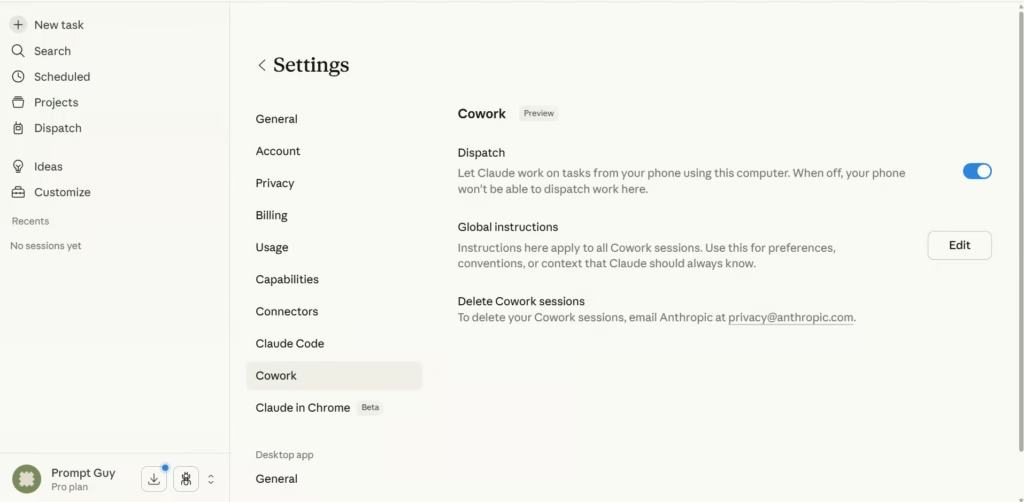
Global instructions apply to every Cowork session regardless of which folder you’re working in. Open Claude Desktop, go to Settings > Cowork, click “Edit” next to Global Instructions, and paste this:
BEFORE EVERY TASK:
1. Read everything in context/ before starting any work.
2. Read rules/working-rules.md.
3. If the task relates to a specific project, read the matching subfolder in projects/.

FOLDER PROTOCOL:
- context/, rules/, and projects/ are READ-ONLY. Never create, edit, or delete
  anything there.
- outputs/ is the ONLY folder for deliverables. Everything you create goes here.

WHEN INSTRUCTIONS ARE UNCLEAR:
- Use AskUserQuestion before making assumptions.
- Don't fill gaps with generic filler. Ask.

ALWAYS:
- Deliver the work. Save commentary unless I ask for it.
- Never delete any file without my explicit permission.
Click Save. Done. Every session now starts with Claude reading your files and following your rules.
Step 4: How AskUserQuestion Changes Everything
AskUserQuestion is a built-in tool that lets Claude pause and present structured, clickable multiple-choice questions instead of making assumptions about your task.
Without it, “write a Q1 report” means Claude guesses the audience, format, tone, length, and data sources. With it, Claude stops and asks: “Who is the audience?” — Executive team / Department leads / External stakeholders. You click. Claude continues with the right context.
Add this to the end of any Cowork request:
Before you start, use AskUserQuestion to gather anything you need to know.
Don't assume — ask first.
The global instructions template above already includes this rule, so it triggers automatically. But you can also use it for specific tasks — like generating your context files. Run the interview prompts from Step 2 inside Cowork instead of regular chat, add “Use AskUserQuestion” to the prompt, and you’ll get clickable options instead of open-ended questions. Faster to answer, sharper results.
What to Actually Use Cowork For
Here’s where the tool earns its keep. These are the categories where Cowork consistently saves hours, not minutes.
File organization. Point it at a chaotic Downloads folder and tell it to sort by type, date, or content. Claude reads the actual contents of files — it’ll recognize that IMG_4521.png is a Stripe invoice and categorize it correctly without being told.
Research and reports. Feed it source material and a structure. It produces synthesized documents that follow your formatting rules, not a generic template. Meeting transcripts into action items. Scattered notes into a polished report. Multiple articles into a comparison brief.
Spreadsheets that work. Cowork creates Excel files with real formulas — VLOOKUP, conditional formatting, multiple tabs, category totals. Not CSVs you have to fix. Drop receipt screenshots in a folder and ask for an expense spreadsheet. It reads the images, extracts the data, and builds the sheet.
Presentations from scratch. Give it a brief and reference files. You get a real .pptx with slides, not a text description of what slides could look like.
Batch processing. Rename hundreds of files. Convert formats. Extract data from PDFs. Any repetitive file task that would take you an afternoon can usually be described in two sentences and finished in minutes.
Plugins, Connectors, and Scheduled Tasks
Once the basic setup is solid, three features extend what Cowork can do.
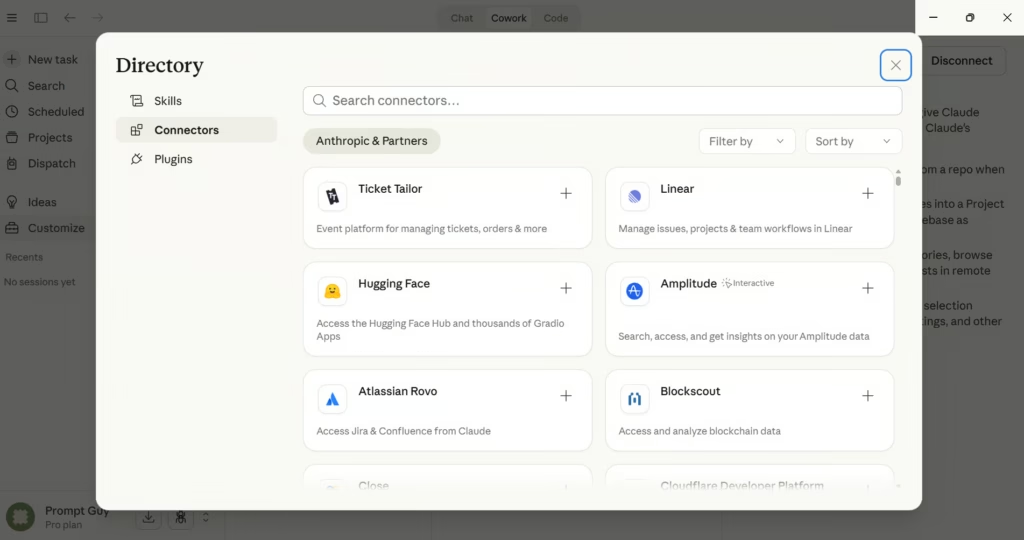
Connectors link Claude to your external tools — Gmail, Google Calendar, Slack, Notion, Google Drive, Figma, and dozens more. Set them up in Customize > Connectors. Once connected, Claude can pull data from these tools during any task. Ask it to summarize your emails from the last week, check tomorrow’s calendar, or pull a file from Drive.
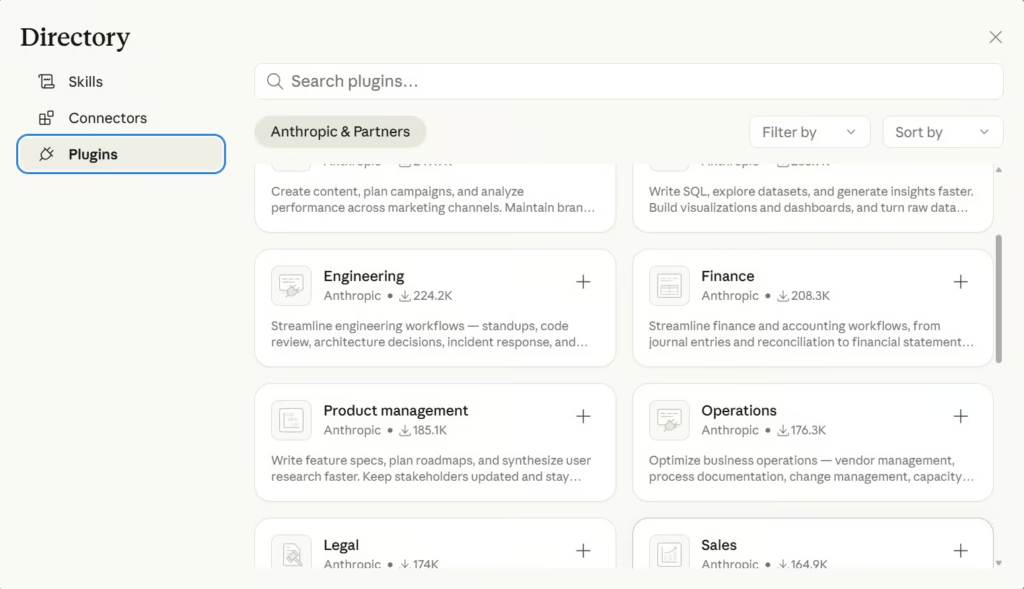
Plugins bundle skills, connectors, and workflows into ready-made packages. There’s a growing library covering sales, marketing, finance, legal, HR, data analysis, and more. Browse them in the Customize menu and install with one click. You can also build custom plugins from scratch using the built-in Plugin Create tool.
Scheduled tasks are the feature that makes Cowork proactive instead of reactive. Type /schedule in any Cowork task, or create one from the “Scheduled” section in the sidebar. Set a cadence — hourly, daily, weekly — and Claude runs the task automatically as long as your desktop is on and the app is open.
Real examples people are running: morning email briefings that summarize Gmail + Calendar + Slack before you sit down. Weekly expense report generation from a receipts folder. Friday file cleanup that organizes Downloads. Competitor monitoring that delivers a research brief every Monday. You write the prompt once. It runs on autopilot.
Cowork Projects and Dispatch
Two newer features worth knowing about.
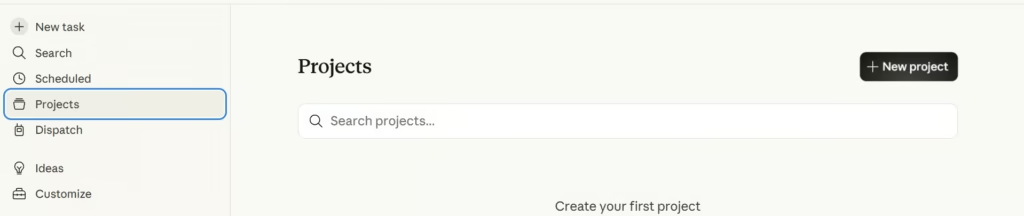
Cowork Projects (launched March 2026) give each project its own workspace with dedicated files, instructions, scheduled tasks, and scoped memory. Memory inside a project persists across sessions — so Claude remembers what you worked on last week without you re-explaining it.
This is different from your context files, which cover general preferences. Project memory covers task-specific context. Create a Project from the left sidebar under Projects.
Dispatch lets you assign tasks from your phone. Pair the Claude mobile app with your desktop, and you can text Claude a task while you’re away from your computer.
Claude runs the full workflow on your desktop — files, connectors, plugins, everything — and sends you the result when it’s done. Requires both the desktop and mobile apps to be up to date.
Where Cowork Falls Short
Honest limitations you should know:
It eats usage fast. One Cowork session can burn through what 20+ regular chats would use. On the Pro plan ($20/month), you’ll hit limits quickly if you use it heavily. Max ($100/month) is more forgiving.
Scheduled tasks only run when your computer is awake and the desktop app is open. If your laptop is closed at 6 AM, your morning briefing won’t run. Cloud-based scheduled tasks through Claude Code don’t have this limitation, but they’re aimed at developers.
No cloud sync. Everything is local. You can’t start a task on your laptop and check it on another machine. Dispatch from mobile helps, but the files and memory stay on one computer.
It still makes mistakes. Cowork can misread files, take a weird approach to a task, or produce output that misses the mark. Review deliverables before sending them to anyone. The plan review step — where Claude shows you what it intends to do before executing — is your safety net. Use it.
Frequently Asked Questions
What is Claude Cowork?
A desktop agent inside the Claude Desktop app that reads and writes files on your computer, plans multi-step tasks, and delivers finished documents, spreadsheets, and presentations to your folder. Available on all paid plans — Pro, Max, Team, Enterprise.
Do the context files get read automatically?
Yes. When you select a folder in Cowork, Claude reads every file inside it before starting. Your .md files in context/ and rules/ load every session without you doing anything.
Can I use AskUserQuestion in Cowork or just Claude Code?
Both. In Cowork, trigger it by adding “use AskUserQuestion” to your prompt or global instructions. Claude presents clickable questions before executing instead of guessing.
How do I schedule a task?
Type /schedule in any Cowork session. Claude walks you through setting a cadence — hourly, daily, weekly, or weekdays. You can also create scheduled tasks from the “Scheduled” section in the sidebar.
Does Cowork work on Windows?
Yes. Launched on macOS January 2026, expanded to Windows February 2026 with full feature parity.
How often should I update my context files?
When your role, priorities, or projects change — roughly once a quarter. Or whenever Claude consistently gets something wrong, which usually means the file needs a tweak.
The difference between Cowork that wastes your time and Cowork that finishes your work comes down to this setup. One folder structure. Three files generated by Claude interviewing you. Global instructions pasted once. AskUserQuestion baked in. From there, add connectors, explore plugins, and schedule the tasks you’re tired of doing manually.
Build it this weekend. Give Cowork a real task Monday morning.
That’s the only test that matters.