

Claude Cowork Scheduled Tasks: How to Set Them Up and 7 Prompts Worth Running
Claude Cowork scheduled tasks let you write a prompt once, pick a cadence, and have Claude run it automatically — every morning, every Friday, every hour if you want. No code, no APIs, no cron jobs. You describe what you need in plain language, set the schedule, and Cowork handles it while you do something else.
This is the feature that turns Cowork from a tool you open into a tool that works on its own clock. Morning briefings that summarize your email and calendar before you sit down. Weekly reports compiled from your project folder. Friday file cleanups that organize your Downloads. All running without you lifting a finger.
But most people either don’t know scheduled tasks exist, or they set one up, write a vague prompt, and wonder why the output is useless. This guide covers both setup methods, gives you 7 copy-paste prompts for the use cases that actually work, and explains the gotchas nobody warns you about.
How Scheduled Tasks Work
A scheduled task is a saved Cowork prompt that runs automatically on a recurring cadence. Each run fires as its own Cowork session, which means it has full access to everything regular Cowork can touch — your local files, connected tools (Gmail, Slack, Google Calendar, Google Drive, Notion), installed plugins, skills, and web search.
The output gets saved wherever you tell it to. If your prompt says “save the briefing as morning-brief.md in my outputs folder,” that file shows up on your desktop without you opening the Claude app. Every run also gets logged as a separate thread in the Scheduled section of the sidebar, so you can go back and review past results.
One thing worth understanding early: after the first run, Claude rewrites your prompt instructions based on what it learned. Which connectors it used, where it found the data, what worked. This is a feature, not a bug. It means the second run is almost always better than the first, because Claude has refined its own playbook. But it also means your initial wording doesn’t have to be perfect — just clear enough for Claude to figure out the right approach.
Scheduled tasks are available on all paid Claude plans: Pro ($20/month), Max ($100/month), Team, and Enterprise. You need the Claude Desktop app, fully updated.
Two Ways to Create a Scheduled Task
There are two setup methods, and they’re suited for different situations.
Method 1: From a Conversation (Best for Rough Ideas)
Open Cowork and start a new task, or use one you’re already working on. Type /schedule in the chat input.
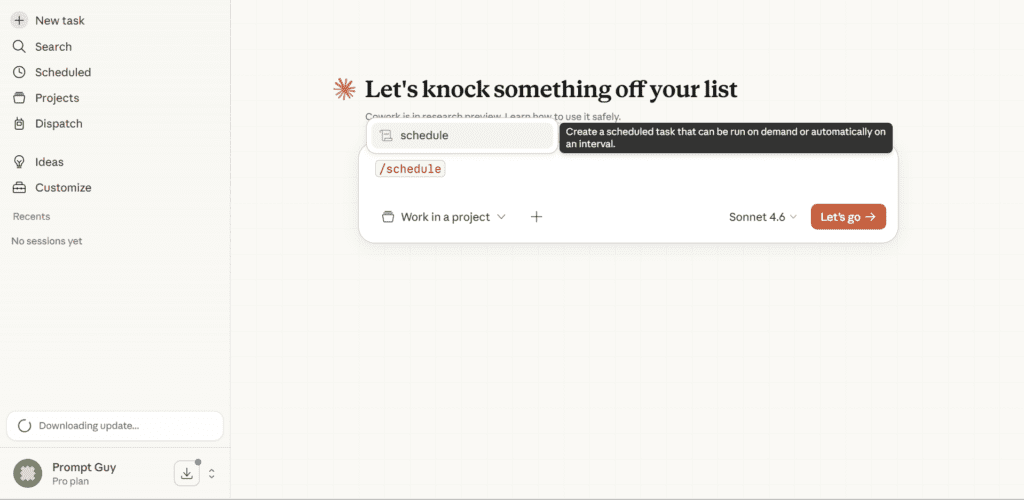
Claude walks you through the setup conversationally — asking about frequency, timing, and what you want done. It helps you shape the prompt if you’re starting from a vague idea.
This is the better option when you know what you want but haven’t figured out the exact wording yet. Claude asks the right questions and builds the task with you.
Method 2: From the Sidebar (Best for Defined Prompts)
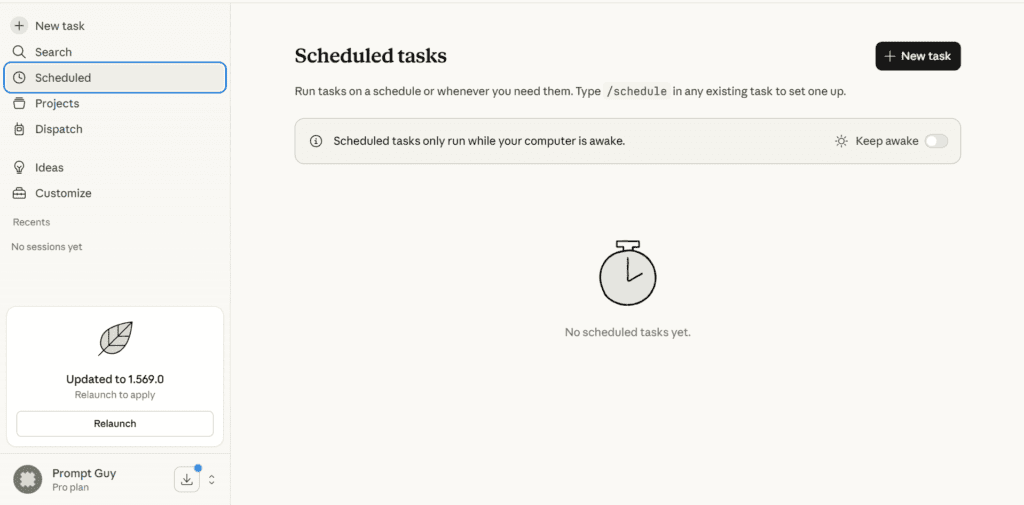
Click “Scheduled” in the left sidebar. Click “+ New task” in the upper right. Fill in the fields: task name, prompt instructions, frequency (hourly, daily, weekly, weekdays, or manual), and working folder.
This method is faster when you already have a well-defined prompt ready to paste. The 7 prompts below are built for this method — copy them directly into the prompt field.
Either way, setup takes about two minutes. Once created, tasks live in the Scheduled section of the sidebar where you can view upcoming runs, edit instructions, pause, resume, delete, or trigger a run on demand.
7 Scheduled Task Prompts You Can Copy Right Now
These are the use cases that consistently deliver value. Each prompt is written to be self-contained — paste it into the scheduled task prompt field and it works without modification, though you should swap the bracketed sections for your specifics.
1. Morning Briefing (Daily, Weekdays)
Check my Google Calendar for today's schedule. Summarize each meeting
in one line: time, attendees, and what it's about.

Check my Gmail for any emails from the last 12 hours that need a
response or contain a deadline. List sender, subject, and why it
matters. Skip newsletters and automated notifications.

Save everything as a single file: outputs/morning-brief.md
Format: Calendar first, then emails. Keep it scannable — no paragraphs.
This one requires Gmail and Google Calendar connectors. It’s the task most people start with, and it’s the one that sticks.
2. Weekly File Cleanup (Weekly, Fridays)
Go through my Downloads folder. Sort all files into subfolders by type:
Documents/, Images/, PDFs/, Spreadsheets/, Other/.

For files older than 30 days, move them to a subfolder called Archive/
inside each category. Do NOT delete anything.

Rename files that have timestamps or random strings in the name to
something readable based on their content.

Save a summary of what you moved and renamed to outputs/cleanup-log.md.
No connectors needed — just file access. Adjust the 30-day threshold to fit your habits.
3. Competitor Watch (Weekly, Mondays)
Search the web for news, announcements, product launches, and blog
posts from these companies in the last 7 days: [Company 1], [Company 2],
[Company 3].

For each company, list what they published or announced. One sentence per
item. Flag anything I should respond to or bring to my team.

Save as outputs/competitor-brief-[date].md.
Uses web search. No connectors needed unless you want it to cross-reference against your own files.
4. Expense Report From Receipts (Weekly or Monthly)
Read all image files in the receipts/ folder. For each receipt, extract:
date, vendor name, amount, and category (food, transport, software,
office supplies, other).

Create an Excel spreadsheet with these columns. Add a totals row at
the bottom. Add a second sheet that summarizes totals by category.

Save as outputs/expenses-[month]-[year].xlsx.
Move processed receipts to receipts/processed/.
This is one of Cowork’s best tricks — it reads receipt images, extracts the data, and builds a real spreadsheet with working formulas.
5. Project Status Report (Weekly, Fridays)
Read all files in the projects/[project-name]/ folder. Look for meeting
notes, task lists, and any documents updated in the last 7 days.

Generate a status report with these sections:
- What was completed this week
- What's in progress
- Blockers or open questions
- Key decisions made
- Next week's priorities (based on what you found)

Save as outputs/[project-name]-status-[date].md.
Adjust the project folder path. This works well when you keep meeting notes and task lists in your project subfolder.
6. Email Triage and Draft Responses (Daily, Weekdays)
Go through my Gmail inbox from the last 24 hours. Categorize every
email into: Urgent, Needs Reply, FYI Only, or Ignore.

Create a triage file listing each email with sender, subject, category,
and a one-sentence summary of what it's about.

For emails in the "Needs Reply" category that only require a short
confirmation or acknowledgment, draft a response. Save drafts as
separate .txt files in outputs/email-drafts/. Do NOT send anything.

Save the triage list as outputs/email-triage.md.
Requires the Gmail connector. The “do NOT send anything” instruction is important — you review the drafts and send them yourself.
7. Content Idea Generator (Weekly)
Search the web for trending topics, discussions, and questions in
[your industry/niche] from the past 7 days. Check Reddit, X, and
industry news sites.

Look for: questions people keep asking, debates getting attention,
new tools or announcements people are reacting to, and gaps where
nobody has a good answer yet.

Generate a list of 10 content ideas based on what you find. For each
idea, include: a working title, why it's relevant right now, and the
angle that would make it stand out.

Save as outputs/content-ideas-[date].md.
Uses web search. Swap the industry/niche for your own.
How to Write Scheduled Task Prompts That Actually Work
The prompts above follow a pattern. Here’s what makes a scheduled task prompt reliable versus one that produces garbage every run.
Be specific about where to find things and where to put them. “Check my emails” is vague. “Check my Gmail for emails from the last 12 hours” gives Claude a clear scope. “Save the output” is vague. “Save as outputs/morning-brief.md” removes ambiguity.
Tell Claude what to skip. Scheduled tasks run without you watching. If you don’t say “skip newsletters and automated notifications,” Claude will summarize every marketing email you received. If you don’t say “do NOT delete anything,” Claude might clean up a little too aggressively.
Define the output format. “Summarize my calendar” could produce a paragraph, a table, or a bullet list. Specify which one you want. Scheduled tasks don’t have you sitting there to course-correct.
Include guardrails for timing edge cases. Your task is scheduled for 7 AM, but your laptop was asleep and catches up at 2 PM. If your prompt says “summarize today’s meetings,” it still works. If it says “prepare me for my next meeting,” the context might be wrong. Write prompts that work regardless of when they actually fire.
| Good Prompt Pattern | Bad Prompt Pattern |
|---|---|
| Specific time window: “last 12 hours” | Vague: “recent emails” |
| Explicit file path: “outputs/brief.md” | No save location specified |
| Clear exclusions: “skip newsletters” | No filters — processes everything |
| Defined format: “one sentence per item” | No format — output varies each run |
| Safety rails: “do NOT delete or send” | No constraints on destructive actions |
The Limitations You Need to Know
Your computer must be awake. Scheduled tasks run locally, not in the cloud. If your laptop is closed or the Claude Desktop app isn’t running when a task is due, it gets skipped. Cowork will catch up and run the missed task when you wake the machine, but it won’t execute at the exact time you wanted.
The workaround: adjust your power settings to keep your machine awake during your task window. Some people use a dedicated Mac Mini that stays on 24/7 as their “Cowork server.” Another option is Claude Code’s cloud scheduled tasks at claude.ai/code/scheduled — these run on Anthropic’s infrastructure and don’t depend on your local machine. They’re developer-focused but work with any connectors you’ve connected to your account.
Each task eats your usage. Every scheduled run is a full Cowork session. On the Pro plan, running several heavy tasks daily will push you toward your limits. The Max plan ($100/month) is more forgiving. Batch lightweight tasks together when possible — one morning briefing that covers email + calendar + news is better than three separate tasks.
Tasks can fail or produce inconsistent output. Especially on the first few runs. Connectors sometimes time out. Web search might not find what you expected. The prompt might need tightening. Check your first 2-3 runs and tweak the instructions based on what comes back.
| Feature | Cowork Scheduled Tasks | Claude Code Cloud Tasks |
|---|---|---|
| Where they run | Your local machine | Anthropic’s cloud |
| Requires computer awake | Yes | No |
| File access | Your local folders | GitHub repos |
| Connectors | Gmail, Slack, Calendar, etc. | Same connectors |
| Target user | Knowledge workers | Developers |
| Setup location | Claude Desktop sidebar | claude.ai/code/scheduled |
Frequently Asked Questions
How do I schedule a task in Claude Cowork?
Two ways. Type /schedule in any Cowork conversation and Claude walks you through it. Or click “Scheduled” in the left sidebar, then “+ New task” and fill in the prompt, cadence, and working folder directly.
Do scheduled tasks run when my computer is off?
No. Cowork scheduled tasks run locally. Your computer must be awake and the Claude Desktop app must be open. Missed tasks run automatically when you wake the machine. For tasks that need to run regardless, use Claude Code’s cloud scheduled tasks at claude.ai/code/scheduled.
What are the best scheduled tasks to set up first?
Start with a morning briefing — it’s the quickest win and shows you how the feature works. Email + calendar summary, daily on weekdays. From there, add a weekly file cleanup and a competitor watch.
How much usage do scheduled tasks consume?
Each run is a full Cowork session, which uses more tokens than regular chat. On the Pro plan, 3-4 daily tasks will burn through your allocation fast. Batch related work into single tasks to reduce consumption. Max plan users have more room.
Can I pause or edit a scheduled task?
Yes. Go to the Scheduled section in the sidebar. Click any task to view, edit, pause, resume, delete, or trigger an on-demand run.
What happens if a scheduled task fails?
The run gets logged in the task’s history with details about what went wrong. You can review it, adjust the prompt, and trigger a manual re-run. Most failures come from connector timeouts or prompts that are too vague.
Scheduled tasks are what move Cowork from “a tool I use” to “a tool that works for me.” The setup takes two minutes per task. The prompts above cover the use cases that consistently deliver.
Pick one. Set it up today.